InSights Into Data provides the ability to merge multiple tables into one table.
There are two ways of doing this merging. The first is when you have tables that are the same (same column names and data types). The second is when the tables have different columns - but share a common unique primary key for the tables.
Merging Identical Tables
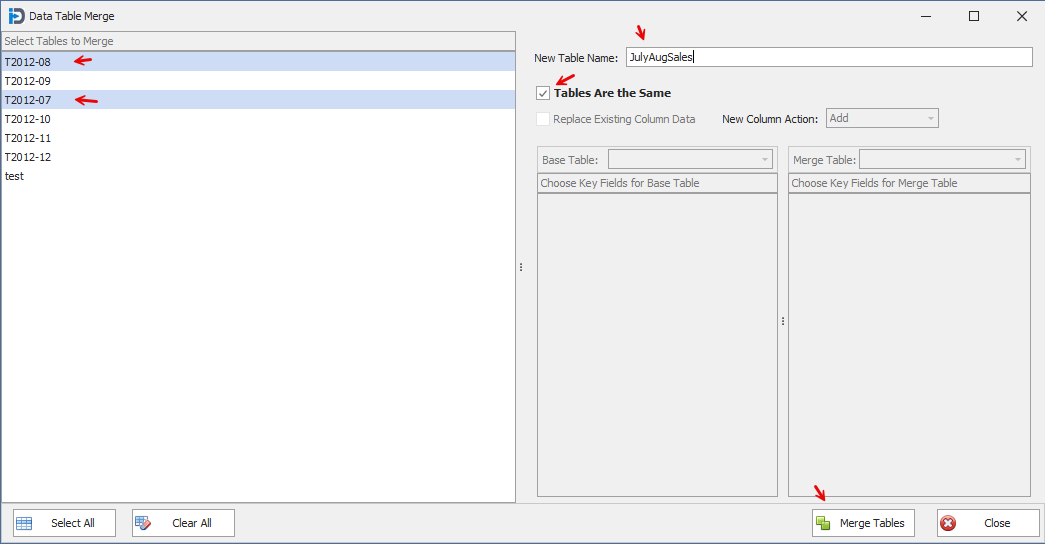
This is the easiest method. You simply select the tables you want to merge on the left hand side, enter the New Table Name - make sure the Tables are the Same checkbox is checked - then hit the Merge Tables button at the bottom. The program will do basic checks to make the tables are actually the same before doing the merge - and provide error messages if they are not, so that you can correct them if possible.
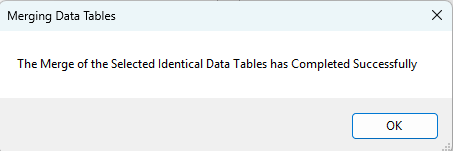
When you click the Merge Tables button - when the merging is completed successfully - you will get the following message.
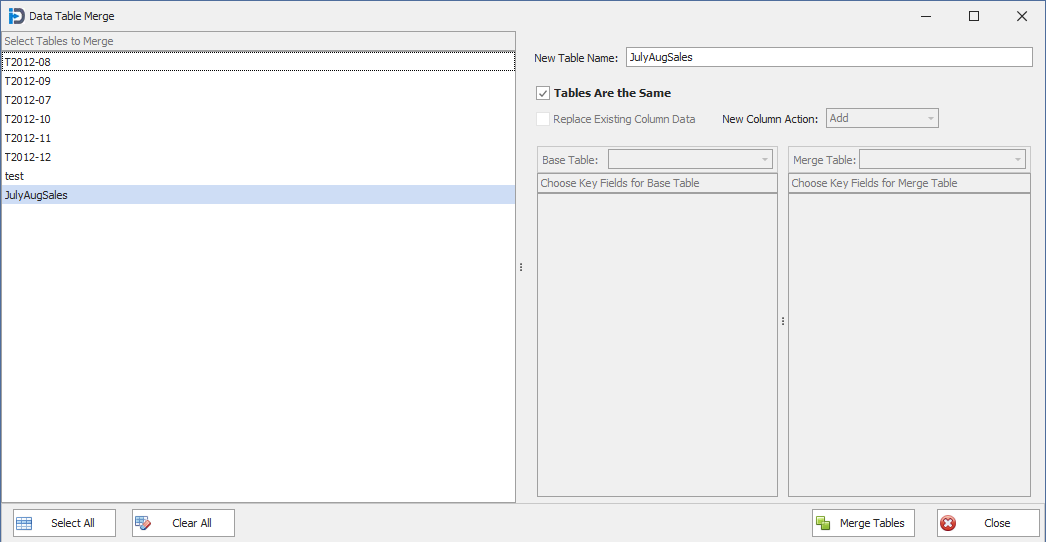
When the merging is complete - you will see the new data table in the list on the left side of the screen. Here you can the new table with the name "JulyAugustSales" at the bottom of list.
Merging Tables that are Different
This method involves a little more work on the user's part - it is a very powerful merge feature!!
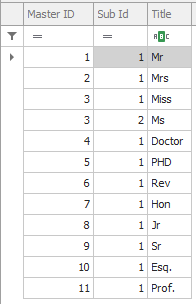
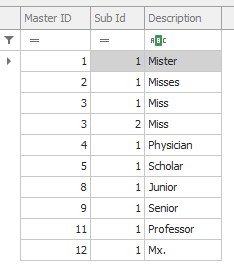
Let's take a look at two data tables we will merge. The first on the left is the Abbreviations for personal titles. The second is the descriptions of those titles. Both tables have a compound key (2 fields) made up of MasterID and SubId fields. We want to merge these two tables and combine the Descriptions with the Title field. Here you can see we have more Abbreviations than we do descriptions - AND we have one new description that does have an abbreviation.
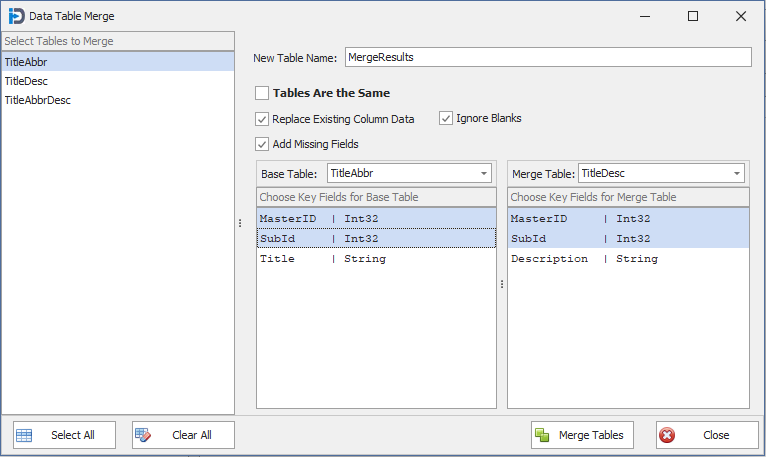
The screen capture shows how you can setup with merge function. Unlike the first example above where the tables were identical - these two data tables are different - but they do have the same Key fields. Having the key fields be identical (Name and Type) between the tables is a requirement of this feature.
New Table Name: This is the name you will be giving the resulting Data Table from the Merge process
Tables are the Same: This check box lets the program know that the tables are different and that the user will be providing further information in the elements below.
Replace Existing Column Data: This check box tells the program to replace any data in the Base Table (in the resulting Merge Results data table) - with data from the Merge table - if they have the same field names. For example if both the merge and base tables have a field called "Colour" then it will use the value from the Merge table over the Base Table.
Ignore Blanks: This check box tells the program that if the data in the Merge table is a blank field or null to ignore it - and not use that to replace data from the Base Table.
Add Missing Fields: This check box tells the program to add any fields from the Merge table that are not in the Base table. If checked they are added - if not they are ignored.
Base and Merge Tables: These allow you to choose which in memory data tables you want to merge. Once you have them selected - they will populate the list of fields in each table. You need to select which field(s) will be used as the unique keys for the merge process. These fields must have the same name and data type.
In the example below you can see we have selected TitleAbbr and TitleDesc in the drop downs - and then selected the MasterId and SubId fields in their field lists as the key fields to do the compares on.
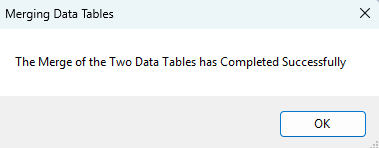
Once you have it configured - you can click the Merge Tables button at the bottom. If the program detects any errors in the configuration of the merge - it will provide error messages to that effect. If there are no errors - the merge process will then be run. Once the merge is complete you will receive the following message.
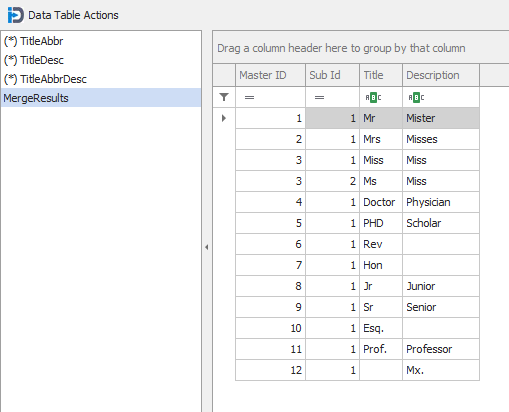
Below is a screen capture showing the results of the configured Merge operation above. Here you can see that the TitleAbbr table has been merged with the TitleDesc table - adding the column Description and filling it in with the values from the TitleDesc table. You can also note that record #12 was added from the TitleDesc table. The two tables have been effectively merged into a new table called MergeResults.