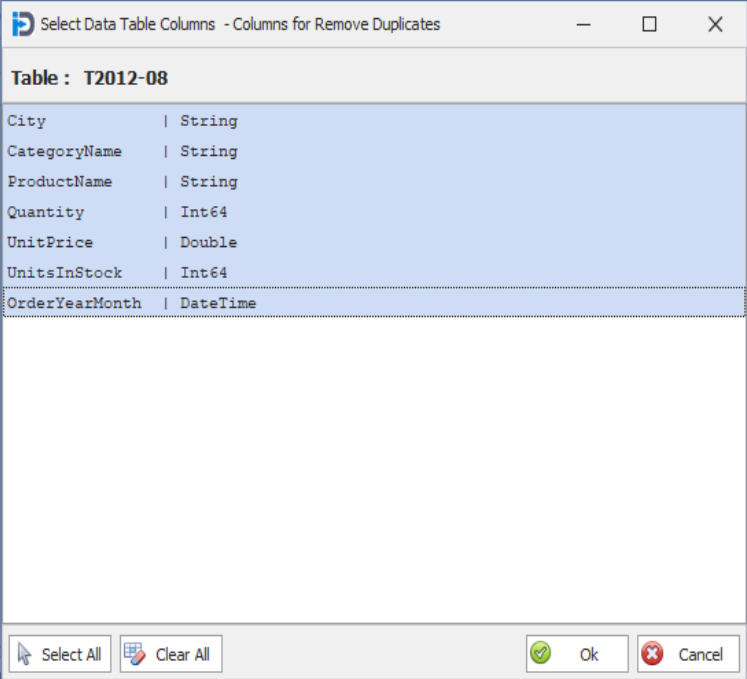
This data cleansing feature allows the user to remove records that have duplicate values for the columns you choose.
In Version 4.2 if you choose all columns then it will only remove records that have duplicate values in all columns. If you choose less than all the columns then the program will create you a new data table with all the unique values for the combination of columns you choose. This can be very handy for creating unique lists of values. For example - in the example below, if you chose just City then it will create a new table with just the list of unique City column values.
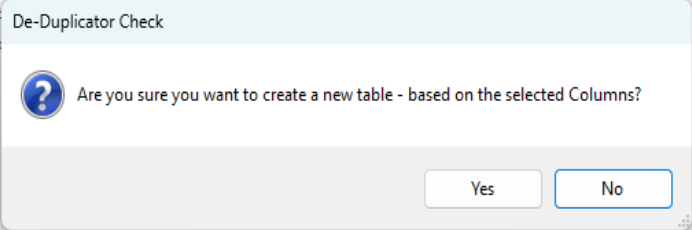
Once you click the OK button - then you will prompted to confirm your decision. Click Yes to create the new data table.
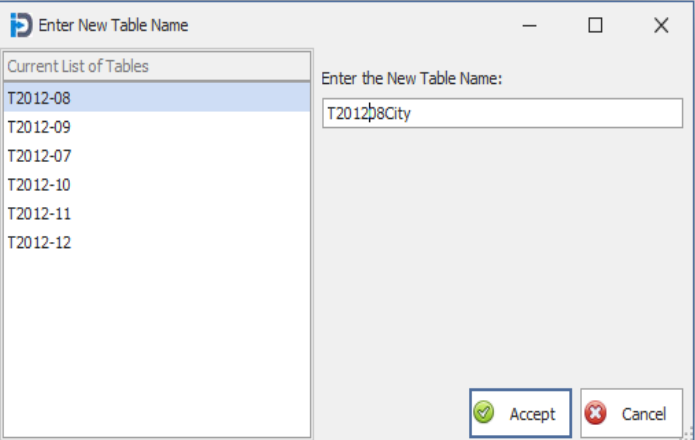
Once you have confirmed your actions - the program will then prompt you for a new Data Table name. You will need to enter a name that contains only numbers and characters. It cannot contain other characters such as dashes, underscores, etc.
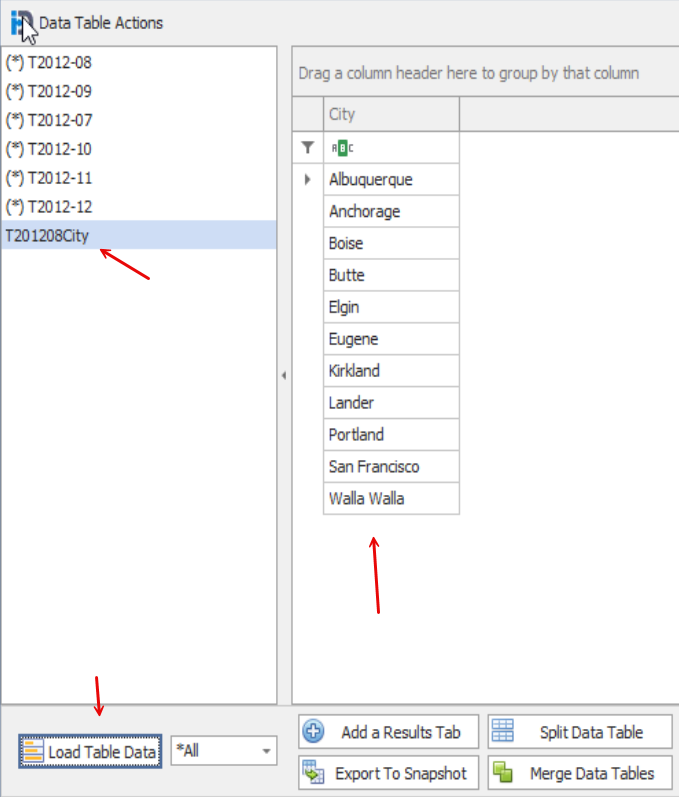
When you click the Accept button the program will go back to the Actions screen. In the screen capture below - you see that we have selected the new Table Name and then clicked the Load Table Data button - showing the list of all unique city values in the grid to the right.