It many cases most of your SQL queries will be short and easy to follow. However, do you have all the clauses correct? Is the SQL properly formed?
An easy way to make sure of this - and handle all the complexities of SQL syntax - is to use InSights Into Data's Visual Query Builder feature. This feature provides a Microsoft Access like window that allows you to visually build the SQL.
Once you are editing the SQL script of the Query - you can click on the Visual Query Builder button on the right side of the SQL window. Once you click on this button, the Visual Query Builder window will be shown.
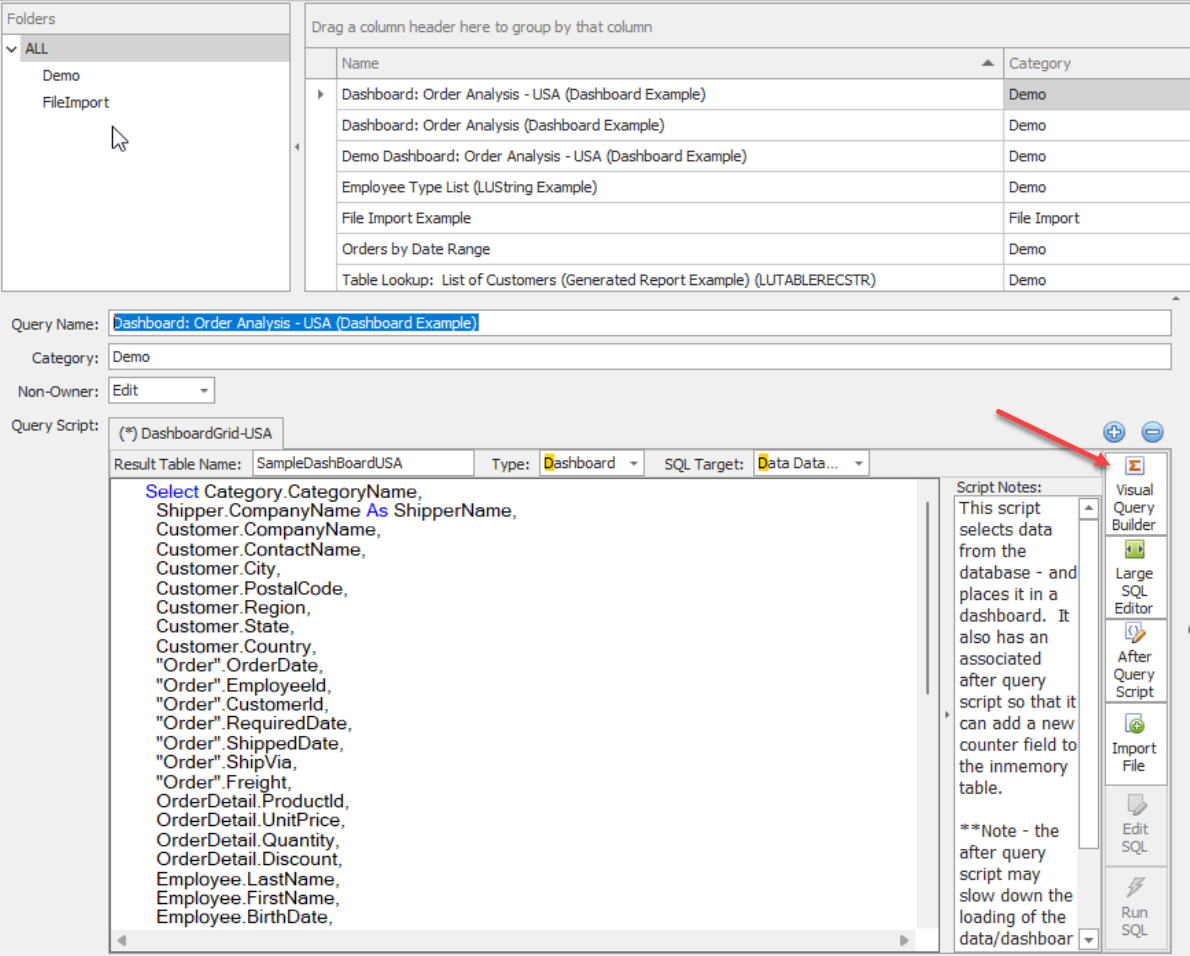
The Visual Query Builder window is shown below. This shows the visualization of the main Query (Dashboard: Order Analysis - USA (Dashboard Example)).
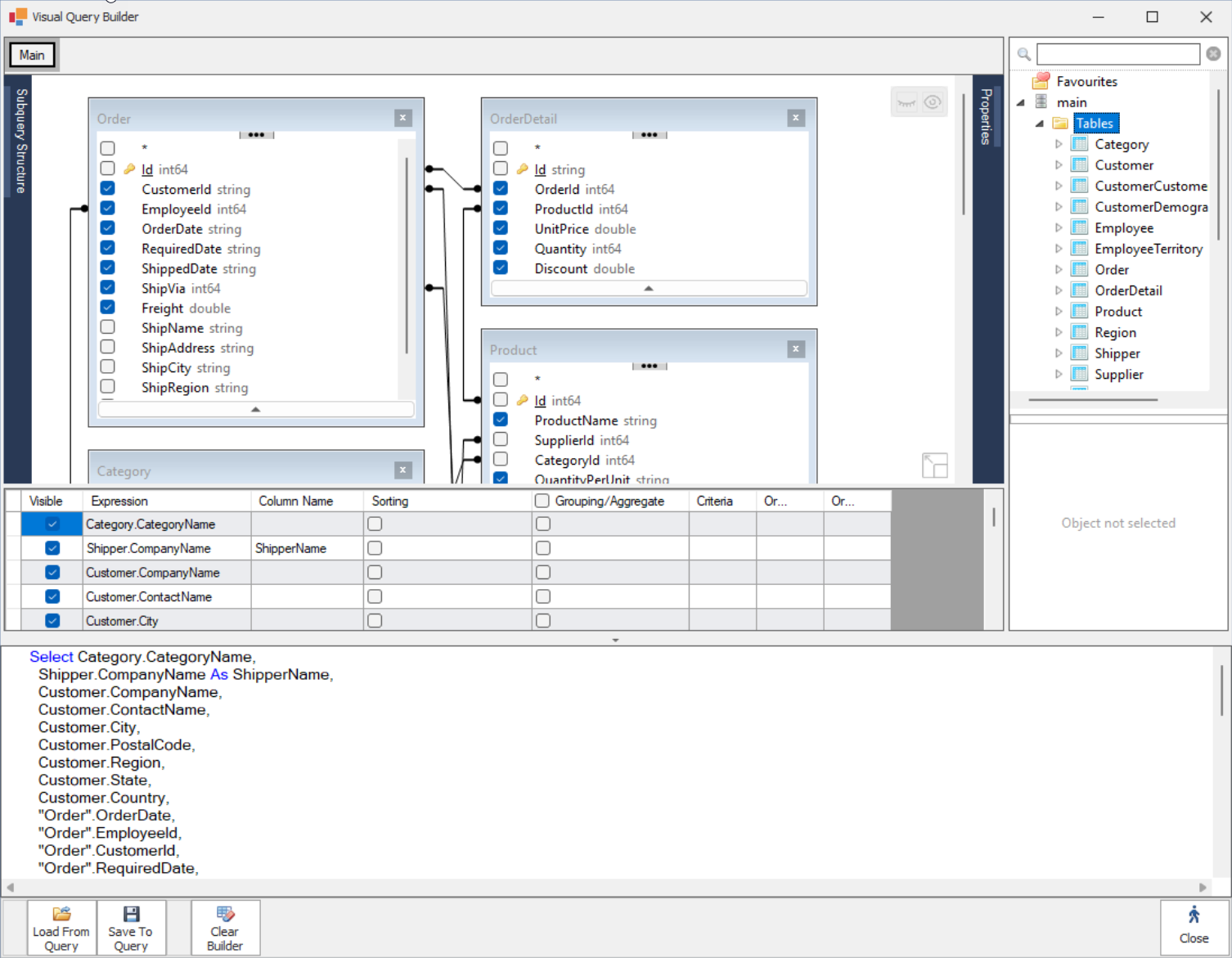
The Visual Query Builder window is broken into four (4) horizontal parts.
The top part contains the map of the data tables being used in the SQL. You can drag a table from the database section on the right to the map area. From there you can drag a field from one table to another to create a SQL Join.
The second part contains the records selection, sorting, and grouping commands. In this area you can specify record selection (SQL Where clause), Grouping (SQL Group By), and Sorting (SQL Order By) for the SQL query.
The third part contains the resulting SQL text generated by the visual components in the top two parts. It should be noted that the SQL text here can be edited - but it will NOT also update the two visual components above!
The final and fourth part is the button bar at the bottom.
Button Bar
The button bar contains the following buttons:
Load From Query
This button will take the text from the main SQL editor in the main window - and put it into the SQL field of the Visual Query Builder window - and use that to generate the visual components for that SQL.
Save To Query
This button will take the current SQL generated in the Visual Query Builder window - and save it to the main SQL editor in the Query editor.
Clear Builder
This button will clear anything in the visual query building window. This will clear both the visual components and the SQL text.
Close
This button will simply close the visual query builder window. NOTE: if the query has any changes from what is currently in the SQL editor on the main screen - then it will prompt the user to see if they want to save the changes before closing the window.