This feature allows the user to upload their currently selected data table to the database you are connected to. This is a great way of sharing some results among different users who all have access to that same database.
In order to upload the in-memory data table records - the new table in the database must either NOT already exist - or it must have Zero (none) records. This prevents you from accidentally overwriting data in the database.
NOTE: the newly created table will be created using maximum values for field sizes. This is because being a generic upload feature we cannot know column sizes in the local data table - so we must create all string fields as 2GB VarChar type fields.
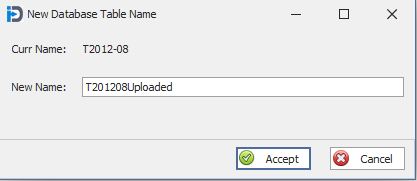
When you first start the process - you will be prompted to enter a new Table Name for the table in the current database you are connected to. In the screen capture below we have entered "T201208Uploaded". Note the program will do a check to make sure that the table does not exist - or that is has Zero records.
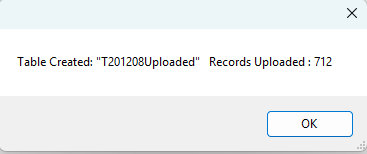
After the upload of the data has completed - you will receive a message telling you the the table has been created and that 'X' records have been uploaded to the database table.
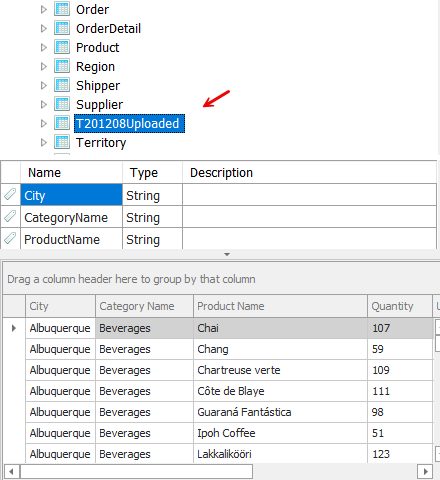
You can see the new database table in our database explorer panel on the main Query screen of InSights Into Data.
Here you can see the new table, the fields, and the data that was uploaded.